Showing posts with label Joomla. Show all posts

Sunday, 20 May 2012

Episode 7 : Insert Image to your Article

If you need to insert an image to your article, you just click an “Image” button which is situated at the bottom of the “Article Text”.

 
Then,
Click Browse button and select your image
After selecting image click “Start Upload” button
When upload is completed then you see your uploading image on the image list. Then select the image and click “Insert” button. After that just drag your image for adjusting what you need.


Written by “Shojib”

Episode 6 : Delete Article


If you need to delete your article, first you go to the “Article Manager” and find out your article from the article list and check the checkbox.

After check the checkbox then you just click the “Trash” button of your top in the “Article Manager”.
 
After click The Trash button, The Article will be deleted form your website.

Delete unnecessary article from your website, just check the checkbox and Trash.

Written by “Shojib”


Episode 6 : Create New Article with Joomla 2.5


Now we create an article with Joomla 2.5. We learned , how to create an article with Joomla 1.5 . In this case, the process is almost similar. So let’s start..

At first, go to your administrator panel and login.
In the control panel, you see the “Add New Article” or “Article Manager” module. See below :
Click The New Article module or if you click The Article Manager, you see the “New” then click this button.


After that, The page is given for create new article. Then you fill up your page what you need.  Example like that :

Title : My first page
Alias : My first page
Category: Simple Data- Article
Status : Published
Access: public
Permission : n/a
Featured : Yes
Language : all
ID : n/a
Article Text : write your article here .

Then click “Save & Close” button. Then you see your article in the article list in the article manager. 

If you select the Feature is No then the star mark is hidden else is visible it’s mean the article is published on the front-page on your website either is not.


Written by “Shojib”


Thursday, 17 May 2012

Episode 5 : New Joomla package 2.5


New Joomla package 2.5


In our previous Joomla tutorials we use Joomla 1.5. Now we use our new joomla package is Joomla 2.5. It is new and so much attractive package for Joomla learner. There are many new template and feature added in this package.

The installation process in this package is same of our previous version. So download from www.joomla.org right now and install this exciting Joomla package.


This is our Admin panal :
  
----------------------------------- X-----------------------------------

This is our Control Panel of Joomla 2.5

  
Now we are using this exciting Joomla Package for our learning.

Written by "Shojib".


Monday, 30 April 2012

Episode 5 : Create New Article

Episode 5 : Create New Article

We are install our Joomla Package in our previous post. Now we add a new article in our website.
At first open your browser and type : localhost/shojib/administrator and press Enter.
The steps are following vediio : 

Wednesday, 25 April 2012

Episode 4 : Joomla Setup


Episode 4 : Joomla Setup

Joomla Setup

At first extract the Joomla in a folder. Then go to
- the C drive
- open the xampp folder
- open the htdocs folder
 
- Create New Folder
- Rename it into the same of the database [ like ‘shojib’].
- Copy all the Joomla file and folder
- Paste it in the shojib folder which is in htdocs folder.

Now we install Joomla. There are 7 steps :
open your browser and write in the address bar is : http://localhost/shojib

1st Step : Language

Choose your language and the click The Next Button.

2nd Step : Pre-installation check


Showing the pre installation check window. Click the Next button.

3rd Step : License


Here showing all license information. Click the Next button.

4th Step : Database Configuration


Fill-up the boxes is following :
Host Name = localhost
Username = root
Password = [No need password]
Database = shojib
After fill-up, click the Next button.

 
5th Step : FTP Configuration 

Here we are not set the FTP configuration so Click the Next button.


6th Step : Main Configuration


Now set your main configuration. Like given bellow :
Site Name : INNOVATION      [This is your website title]
Admin Password = 12345
Confirm Password = 12345

Now click to the “Install Sample Data” button then you see the “Sample data installed successfully” massage . Now click the Next Button.


7th Step : Finish


Here it tell you in red color  that delete the “installation” folder.
Now go to the
- htdocs folder
-shojib folder
- delete “installation” folder


Now back to the browser and click “Site” button.


After click Site button then you see the Joomla Site. It is your frontand of your website


Written by “Shojib”

Thursday, 12 January 2012

Episode 3 : Create Database for Joomla


Create Database for Joomla

Before install Joomla, we need a database for Joomla and our website. Now we create a database.

Open your browser and write in the address bar is : http://localhost/phpmyadmin and press Enter and you look given below : 


It is our home page for creating database.

Now write the name of the database in “Create New database ” box. 

Here Database is “shojib”. You select your database name. Then click the “Create”button. After that, you see the confirmation massage like this,  


Our database has been created.


Written by “Shojib”


Episode 2 : Server Installation


Server Installation Process

The installation process of Joomla is so easy. There we know about the installation of Joomla in local computer.

We know that Joomla is made by PHP language and MySQL database, so we need a web server. For using Joomla, at first we make our local computer to be a server. For this, we can use the WAMP or XAMPP server. [ Now we use XAMPP server  ]

We need For Install Joomla :
 * XAMPP installer
 * Joomla 1.5 or other version installer

XAMPP is also a free server. You can download from the internet and the url is : www.apachefriends.org/en/xampp.html . Select your installer following your operating system. If you use Windows operating system then you select the XAMPP for Windows.

XAMPP

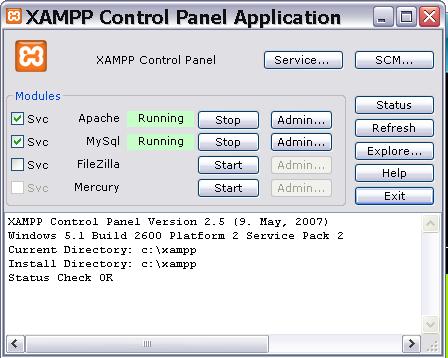
After download and install the XAMPP server and when you finish, you see the XAMPP control Panel Application.


In control Panel, you see Apache and MySQL is running. When you work with this server, it will must be running.

Written by “Shojib”

Episode 1: Beginning Joomla


Beginning Joomla

Joomla is the most popular and attractive content management system. We use this system for create beautiful  dynamic website and other online application. It is very easy to use and it create website very beautifully. There are no need to special knowledge or skill about web building for using joomla. It is simple and easy to use.

Joomla is a open source system. So You can download this from the internet and it is free. You can download Joomla from this website : www.joomla.org .

Joomla is very powerful system for web building. Joomla made by PHP programming language and for storing data, it use MySQL database.

Joomla has huge extension that we can create website so easy and beautiful using these extension.

In 2008, Wikipedia was searching the popularity of content management system and it was proved that Joomla is the most popular content management system of any other system.

Written by “Shojib”